Documents
General
Working with documents in Newton is easy and flexible. It starts with a plan: The structure of Document Types. Newton offers the possibility to branch out into as many types as needed.
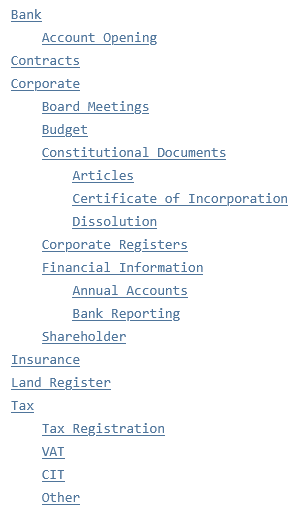
For example, a structure could look like this:
Create new Document Types
To create a new document type, navigate to Configuration and Options in the left-hand navigation.
In the Document Type group, you can add a new document type, edit existing ones, and show a hierarchy (like the one above) by clicking on the button SHOW LIST.
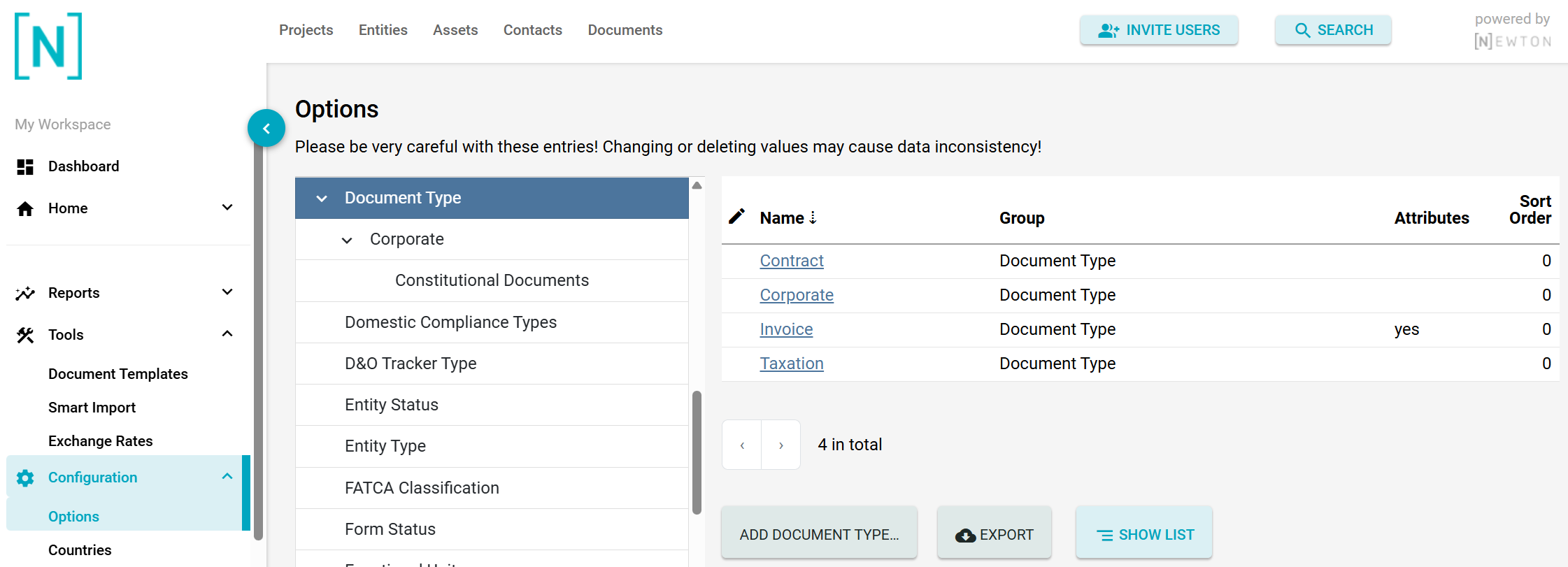
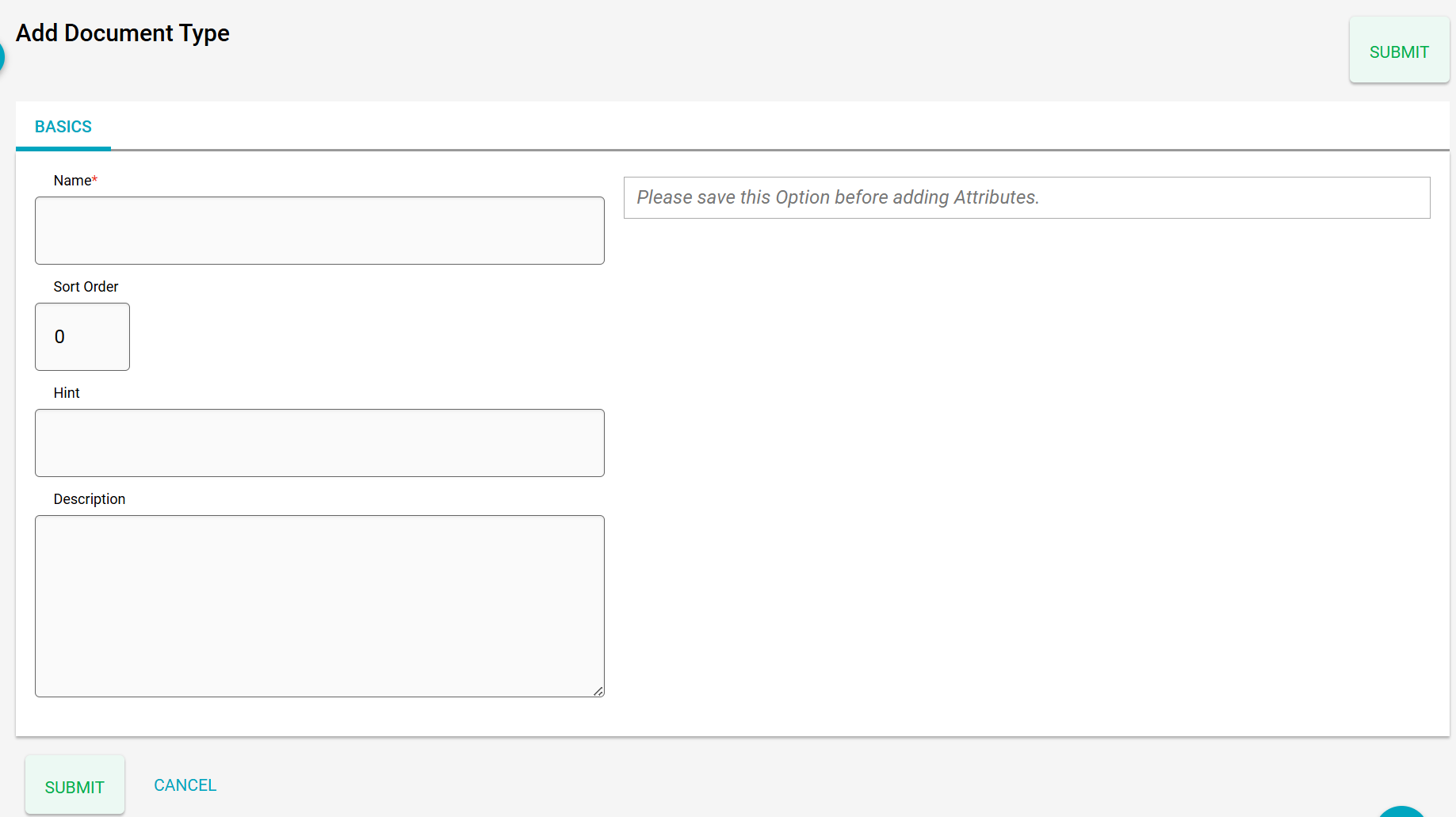
When adding a new document type, you can either add a new type or you can add a sub-option by editing an existing option like the ‘Corporate’ above, with the sub-type ‘Constitutional Documents’.
Document Type Attributes
Attributes can be used further to describe the behaviour of documents of a particular type. For example, if they should contain a Due Date, for which data types they should be used, or if they are relevant for VAT. Here’s the complete list:
List of Attributes
| Attribute Name | Description | Example | Attribute Name | Description | Example |
|---|---|---|---|---|---|
| has_expiration_date | Date of expiration. The responsible person (if set) will be notified prior to expiration. | 2029-12-31 | |||
| has_due_date | Due date. The responsible person (if set) will be notified before this date is reached. | 2030-06-30 | |||
| has_reference_month | If activated, documents will have a select box for a reference month (1-12). | 12 | |||
| has_reference_quarter | If activated, documents will have a select box for a reference quarter (1-4). | 4 | |||
| has_reference_year | If activated, documents will have a select box for a reference year, and can be filtered by it in the corresponding section. | 2025 | |||
| is_relevant_for_registration_no | If activated, a doc icon linking to the document(s) of the type will be displayed on the entity’s basic tab. | | |||
| is_relevant_for_vat | If activated, a doc icon linking to the document(s) of the type will be displayed on the entity’s basic tab. | | |||
| model | List of data points where this document type should be available. If empty, the type is visible for all data points. | Entity, Asset | |||
| responsible_contact_group | This determines to which Contact Groups a contact has to belong in order to be offered as a responsible person. | All active contacts |
Document Templates
You can also create new documents from document templates. Those can contain data from Newton, depending on the data point.
Basics
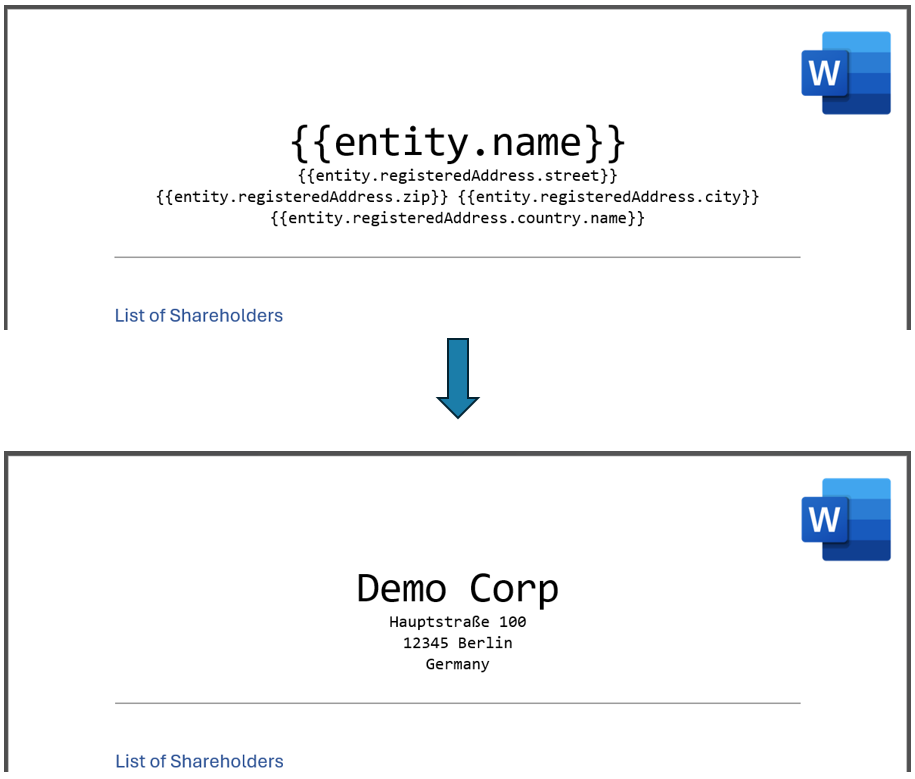
Document templates serve as the foundation for generating customised documents. Essentially, a template is a Microsoft Word file containing placeholders that allow data from Newton to be seamlessly integrated into the text. The output is a fully formatted MS Word document.
How to create a Document Template?
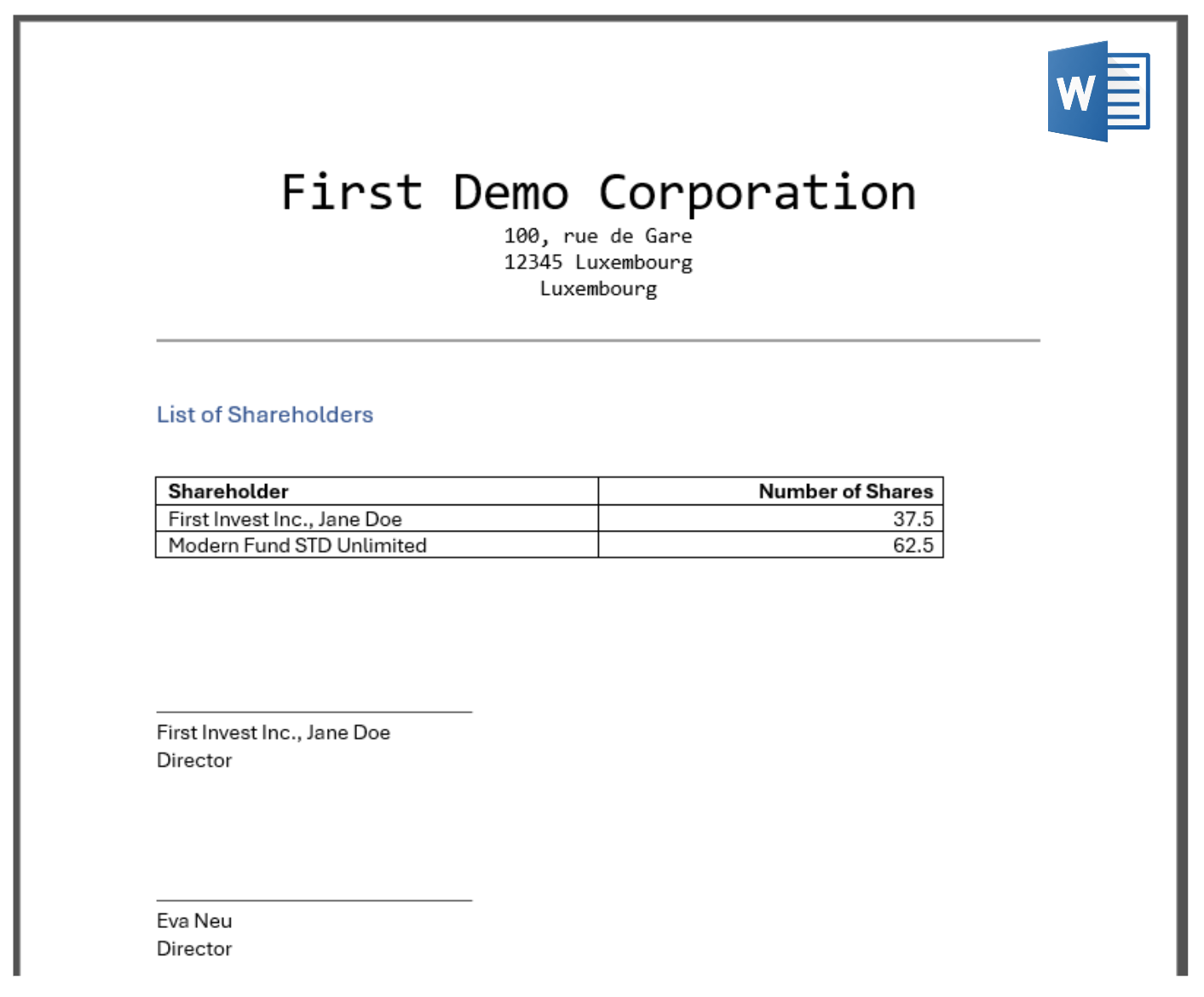
Let’s assume we want to create a template that contains a list of shareholders of the actual entity, to be signed by the actual director(s).
-
Start with a new Word Document. You can use a blank one or from a (Word) template including company logos, etc.
-
Enter all the text you want to see in the document. Wherever you want to see data from NEWTON, you can use a variable. The format is:
{{variable_name}}You can also use loops for lists and other formatting. Newton uses the Jinja syntax.
A complete documentation can be found .The list of variable names provided by Newton is documented Variables available for Entity Document Templates.
-
Now, save the file and upload it to Newton under Tools > Document Templates. That's it.
You can download this sample template here:
Working with Documents in [N]
How to generate a Document from a Template?
You can generate a document wherever you find the document upload dialogue. For example, on the Entity’s Documents tab.
Step-by-step
The result (using the template above) would look like this:
Uploading Documents
Like generating a document, you can upload an existing document wherever you find the document upload dialogue.
Sharing Documents
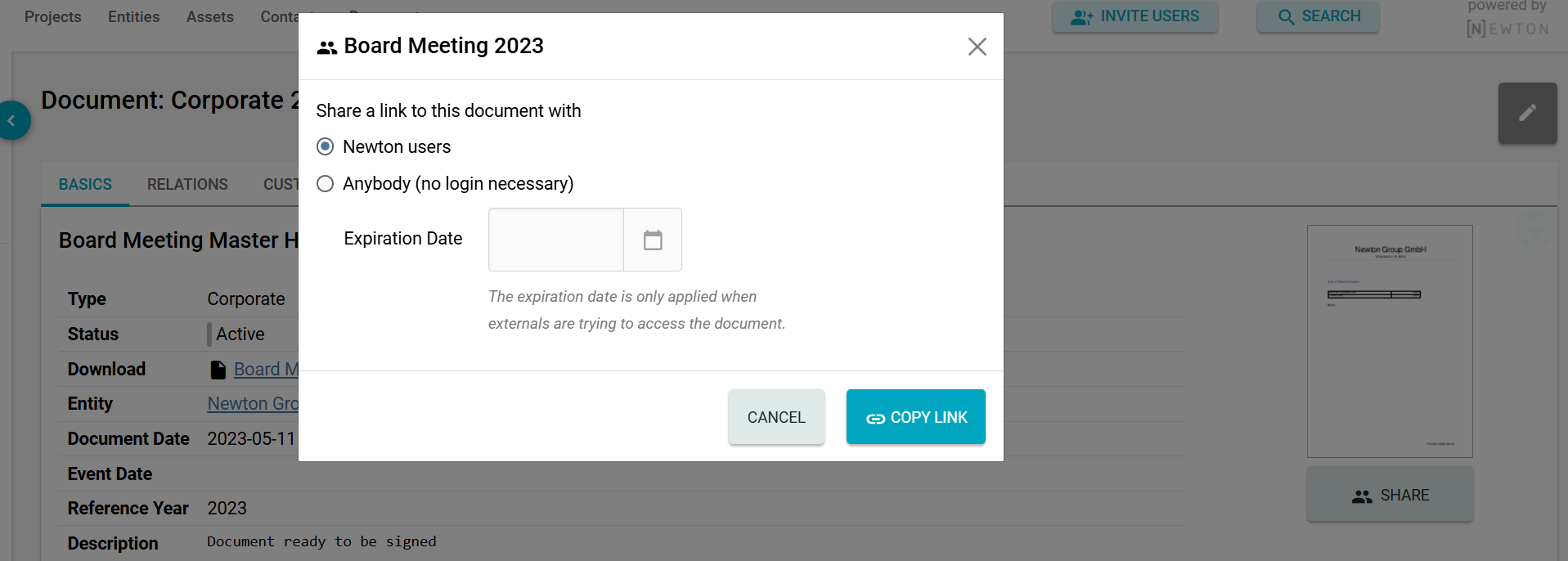
With the appropriate right to view documents, you can share them with other Newton users or anyone by sharing a link to the corresponding document. Additionally, you can add an expiration date for external users to limit access.