4-Eyes-Principle
General
The 4-Eyes-Principle (4EP) is a separate module, available in Enterprise plans only. With 4EP enabled, changes to sensitive data are not saved directly: they become change requests that another person has to review and confirm before they take effect.
This guide shows how 4EP works for Signatory Rule Sets and for signatory rules of bank accounts, how to manage your own change requests, and how reviewers confirm or decline them.
Changing data under the 4-Eyes-Principle, part 1
Signatory Rule Sets
Introduction
Signatory Rule Sets are a special kind of Options. The Options themselves (adding them, deleting them or changing their name) are not under the 4-eyes principle.
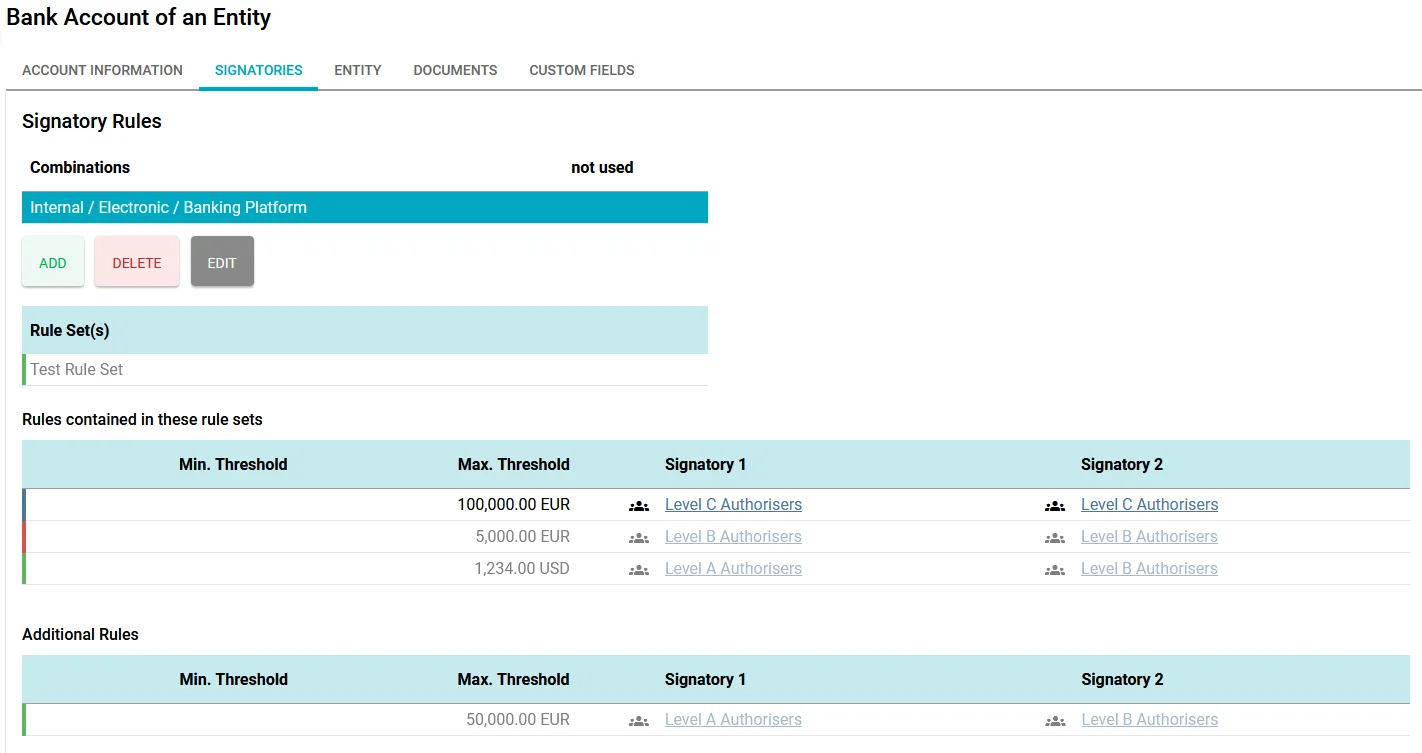
When you edit such an Option, you will find the table of rules contained in the rule set in the top left:
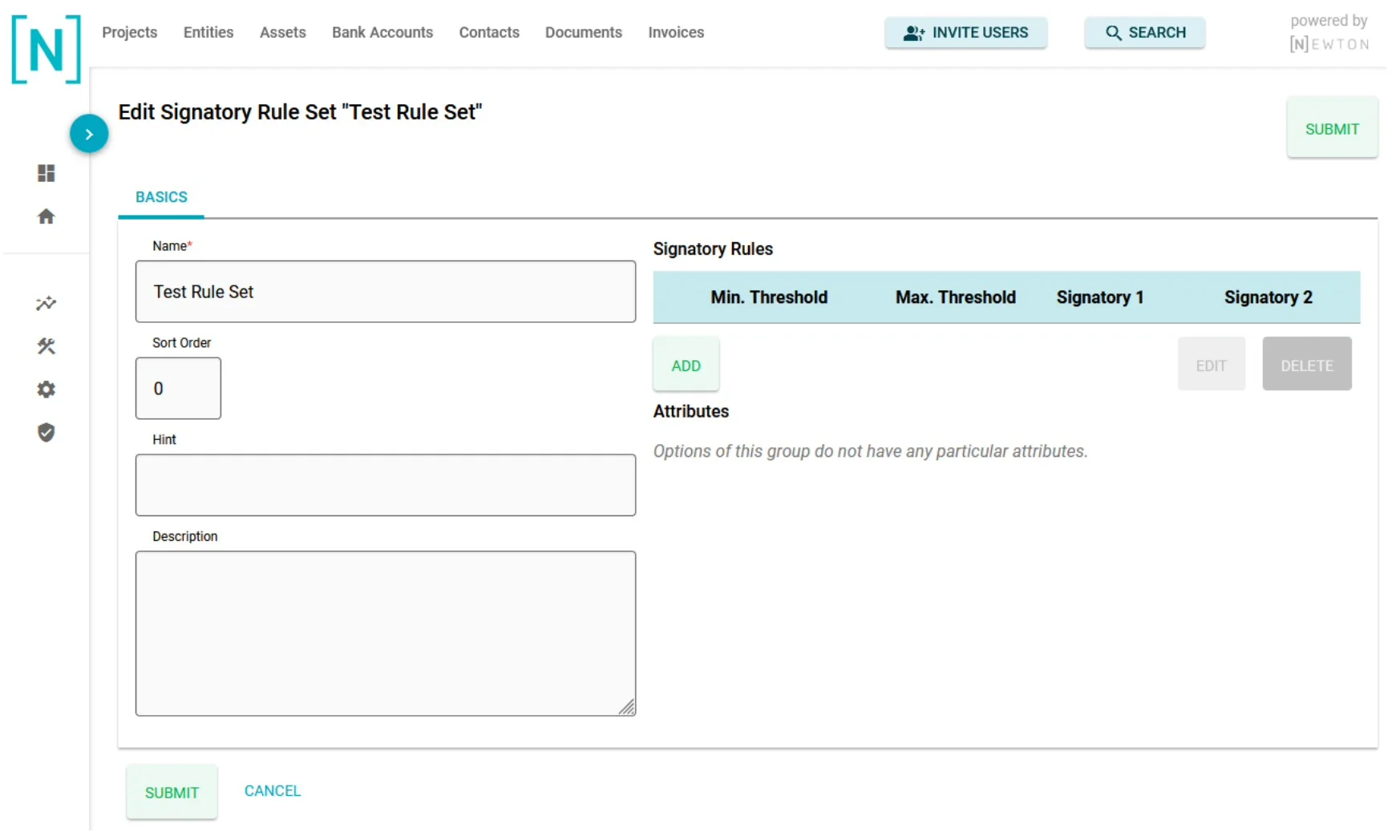
Adding, editing or deleting rules is under the 4-eyes principle. Attempting to make changes results in change requests, which need to be reviewed by another person.
Adding rules
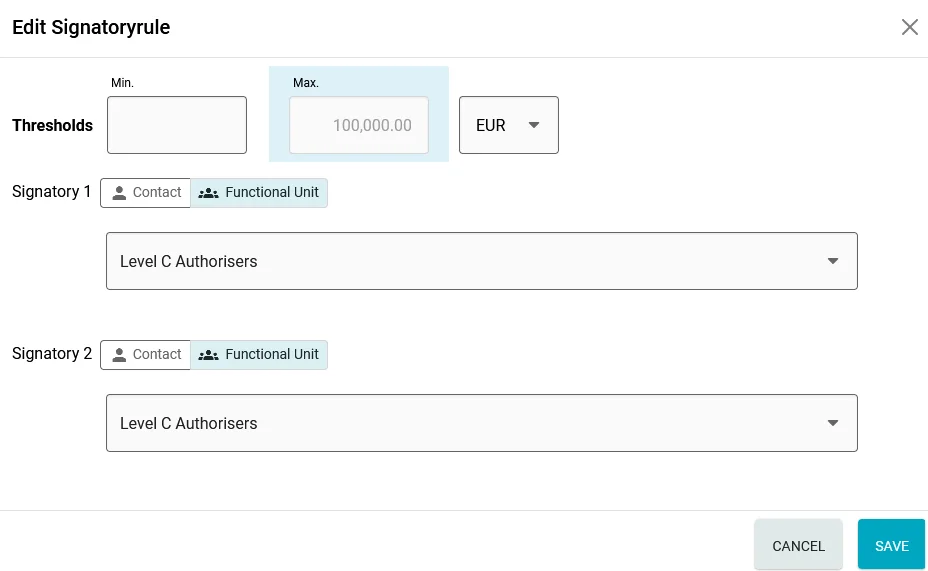
While you enter data to add a rule, every field you change is highlighted. The principle is the same as when editing existing data. Moving the mouse over a highlighted area shows the previous value, which for new data is usually empty:
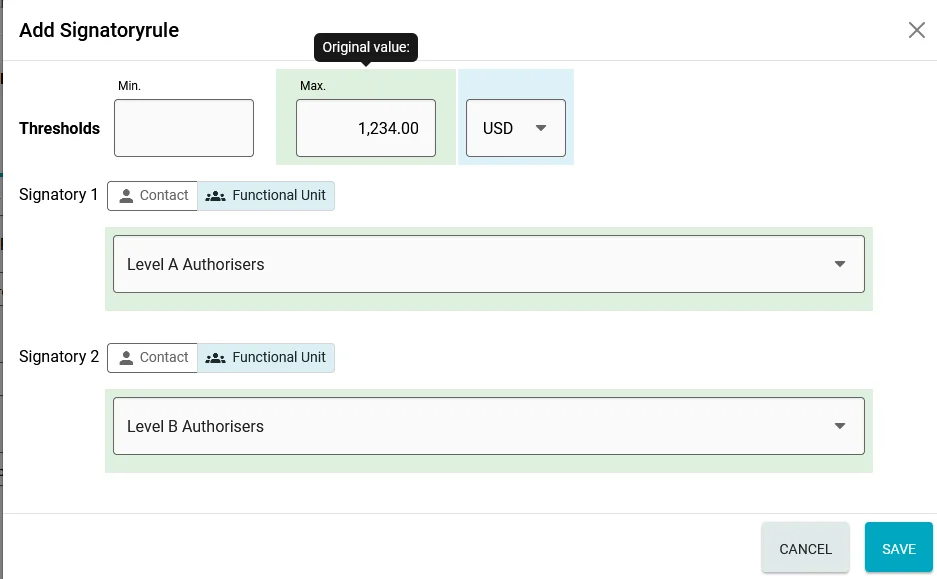
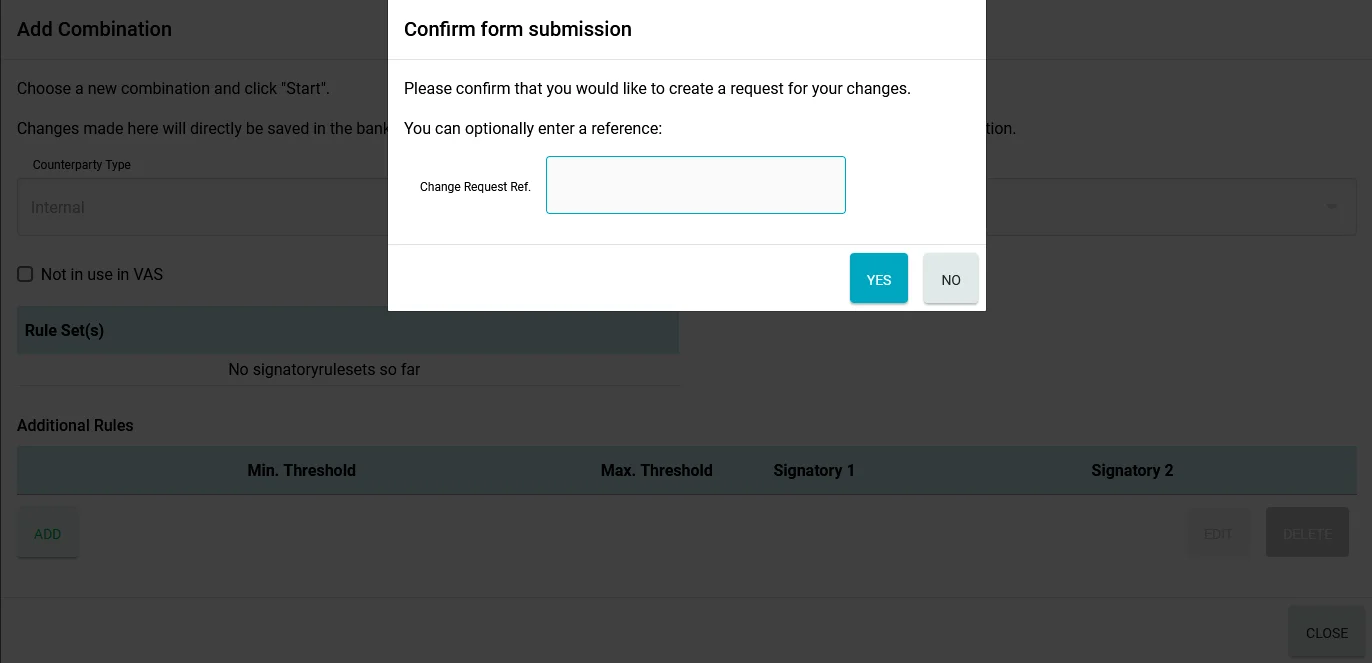
When you save, you are asked for a Change Request Ref.. This can be a ticket number from an external system or any other kind of reference.
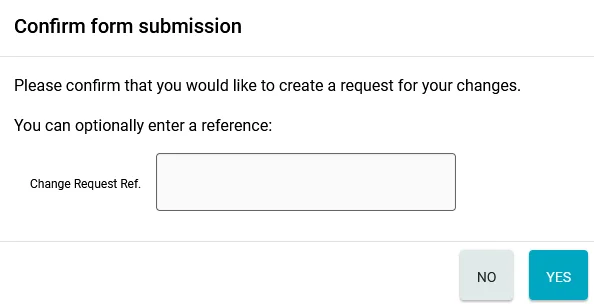
The reference is optional. Clicking No returns to the edit dialog, so you can continue amending the field values. Clicking Yes turns the data into an add request.
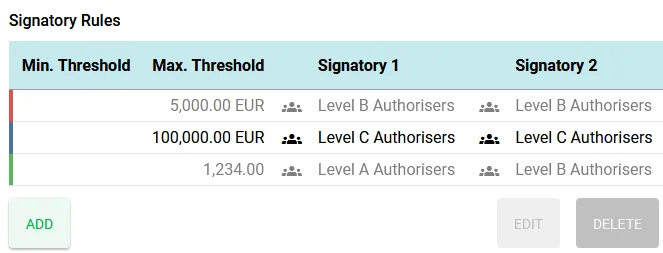
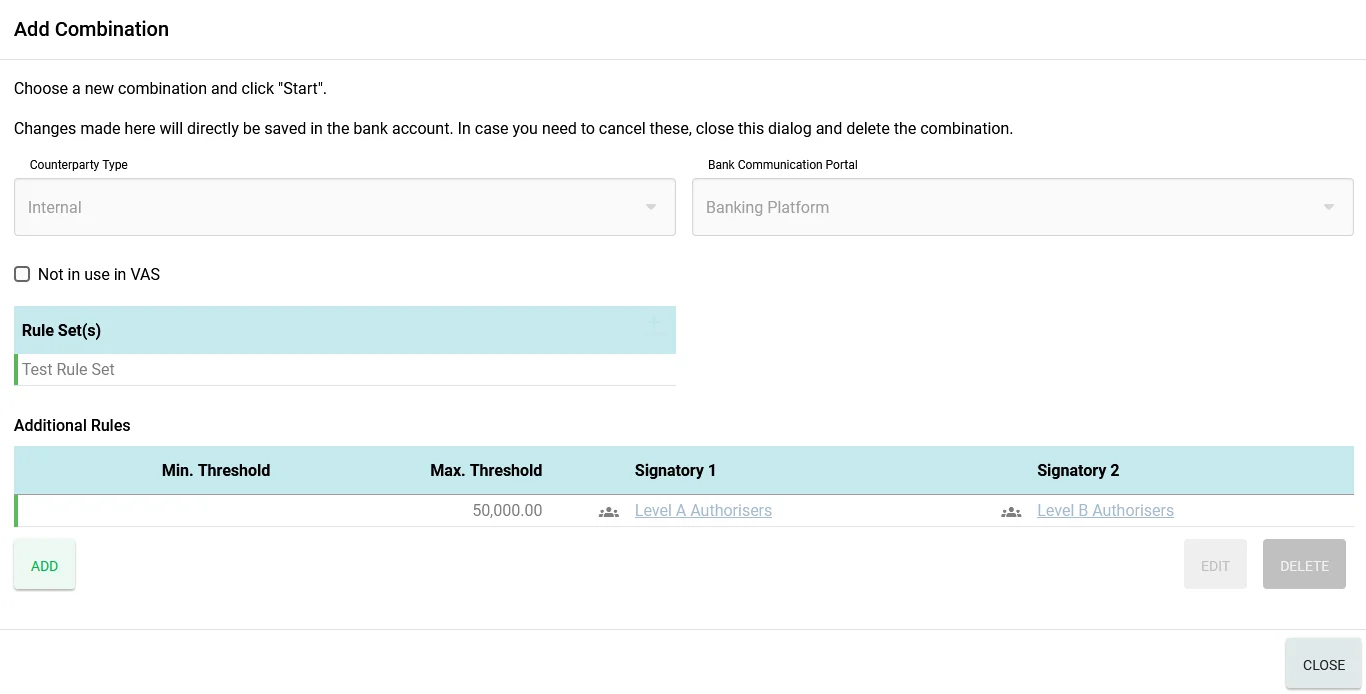
The rule to be added is displayed in the Option with a green left border (green for "add") and a slightly transparent font:
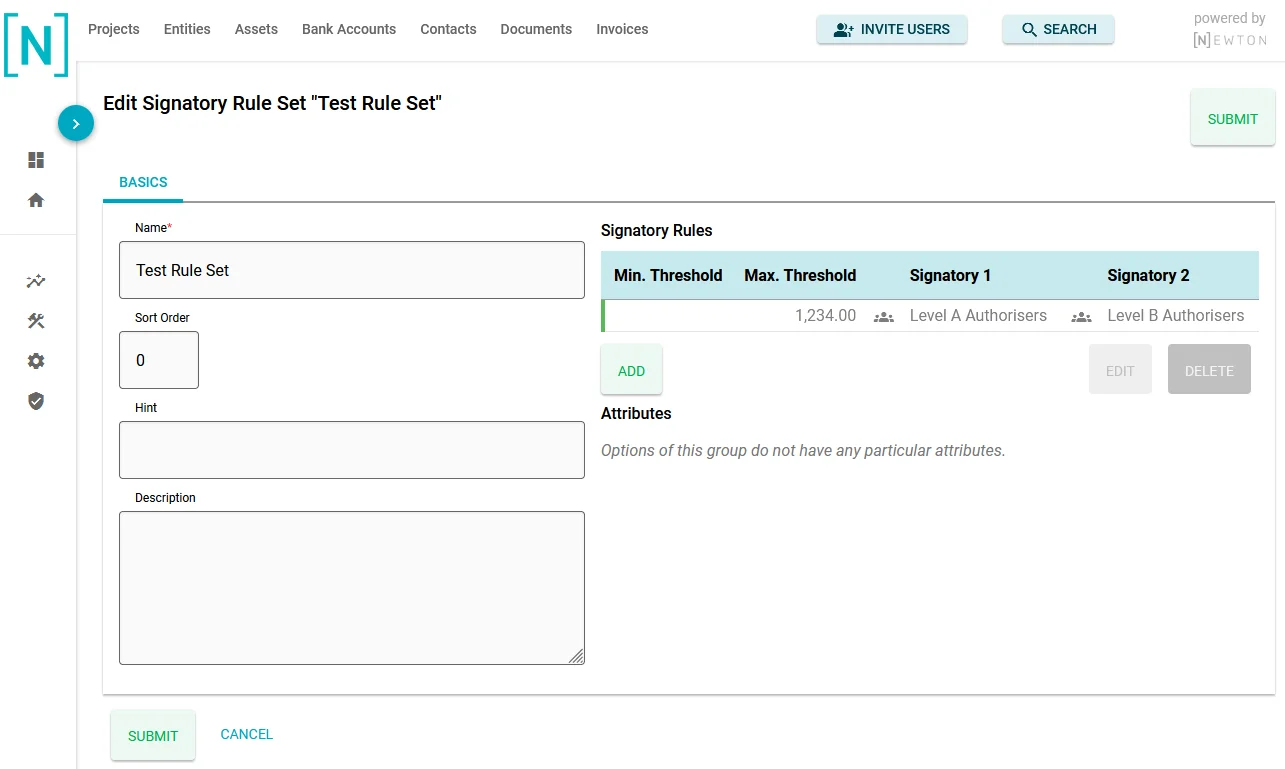
As the rule does not effectively exist yet and is under review, it cannot be edited or deleted.
Editing rules
A rule that is not currently under review can be edited.
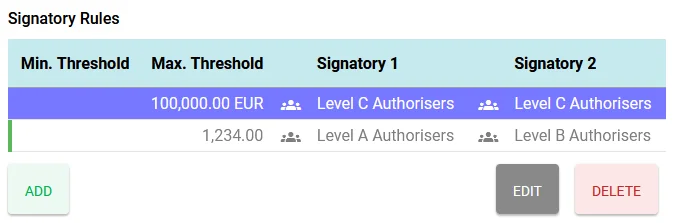
While you edit and change values, the changed fields are highlighted as described above.
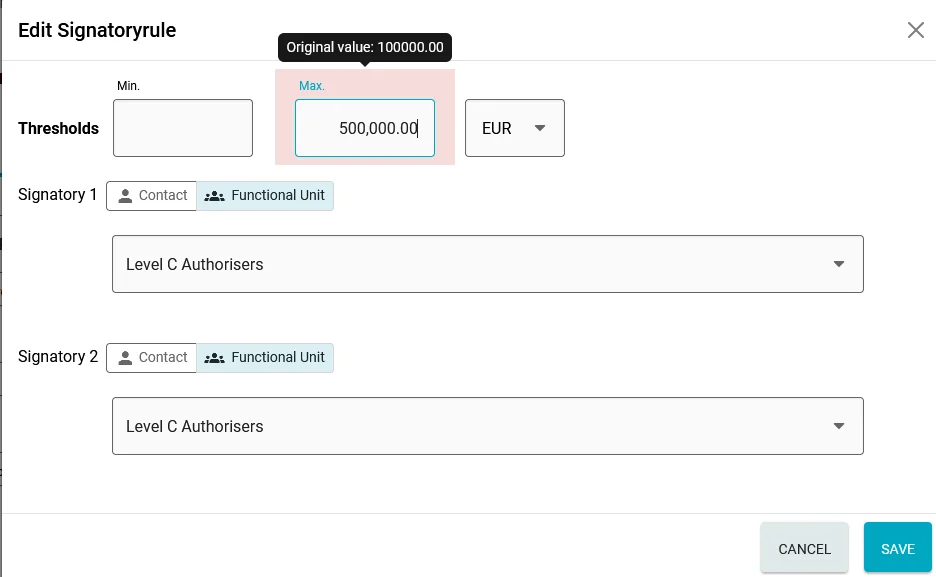
Saving asks for a Change Request Ref. as well. After saving, the rule is displayed with a blue left border (blue for "edit"). The values shown are still the current values, not the newly requested ones.
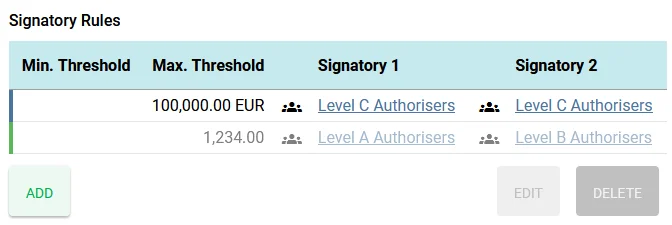
When you try to edit such a rule again, every field with an open change request is highlighted and disabled. This prevents multiple users from changing the same field of the same rule. A pending request needs to be cancelled by the requester, or confirmed or declined by a reviewer, to unlock the field again.
Deleting rules
A rule that is not currently under review can be deleted. When you click Delete, the dialog asking for a Change Request Ref. appears immediately. After confirming, the rule is displayed with a red left border (red for "delete") and a slightly transparent font.
Managing your own change requests
Every user can find the Data Review area in the left-hand navigation, under Home. The area has tabs for different purposes. The first tab, My View, lists your own open and rejected change requests.
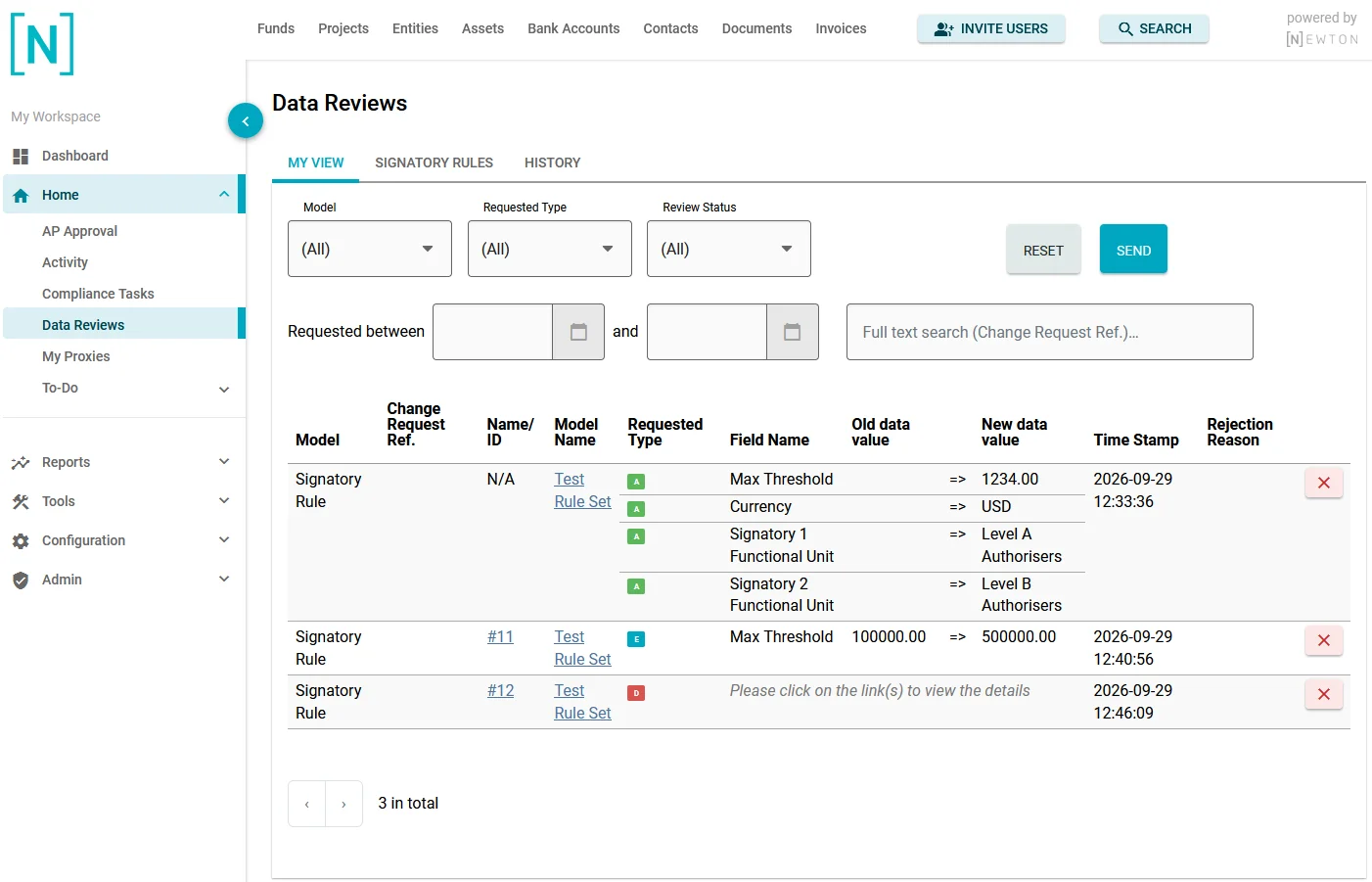
Use the filters at the top if you have many open change requests.
The contents of the table columns depend on the type of change request (add, edit, delete) and the data it was created for:
- Model: the kind of data of the change request.
- Change Request Ref.: the optional reference entered when the change request was created.
- Name/ID: the "name" of the data, linking to the data itself. This depends on the kind of data: for an entity or a contact, it shows the name of the entity or contact. Signatory Rules do not have a name, so the link text shows:
- for add requests: "N/A", as a rule that is yet to be added has no record ID;
- for edit or delete requests: the record ID of the rule.
- Model Name: the "owner" of the data. Rules are owned by a rule set, so the name of the rule set is shown.
- The next columns contain information per field:
- Requested Type: an icon with a colour and a letter for Add, Edit or Delete.
- For add requests, all fields show a green icon.
- For edit requests, it depends on the requested change:
- If a field was previously empty and is to be populated, it counts as an "add".
- If the value changes from one non-empty value to another, it is an "edit".
- If a field is to be emptied, it counts as a "delete".
- For deletions of whole records, the individual field values are not logged.
- Requested Type: an icon with a colour and a letter for Add, Edit or Delete.
- Time Stamp: the date and time the change request was created.
- Rejection Reason: when a reviewer rejects a change request, they have to give a reason, which is shown here.
You can cancel your own requests by clicking the [x] button in the rightmost column.
Reviewing change requests
System administrators and users with the right DataReviews/View can see the pending change requests of all users. They appear in the Data Review area (Home > Data Reviews) on separate tabs next to My View. The tabs are created dynamically, depending on the change requests currently pending.
In the example above, there are only change requests for rules in rule sets, so there is only one tab, labelled Signatory Rules.
The user who created the change requests can see them on those tabs as well, but in a disabled state:
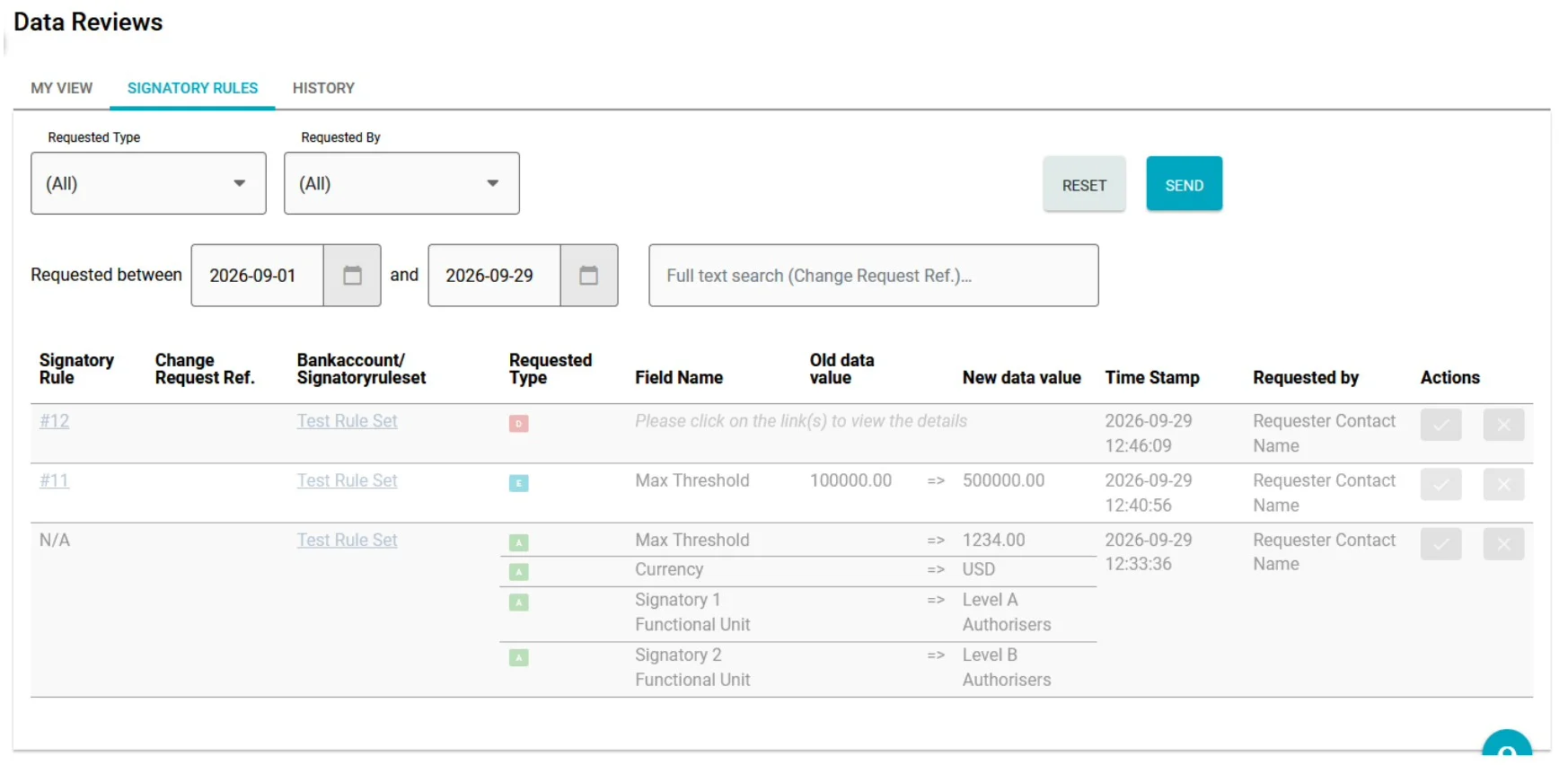
A requester can never review their own change requests. If other users created change requests and you are a reviewer per configuration, you can confirm or decline those requests, but not your own.
This is the same page for a reviewer who did not create the change requests:
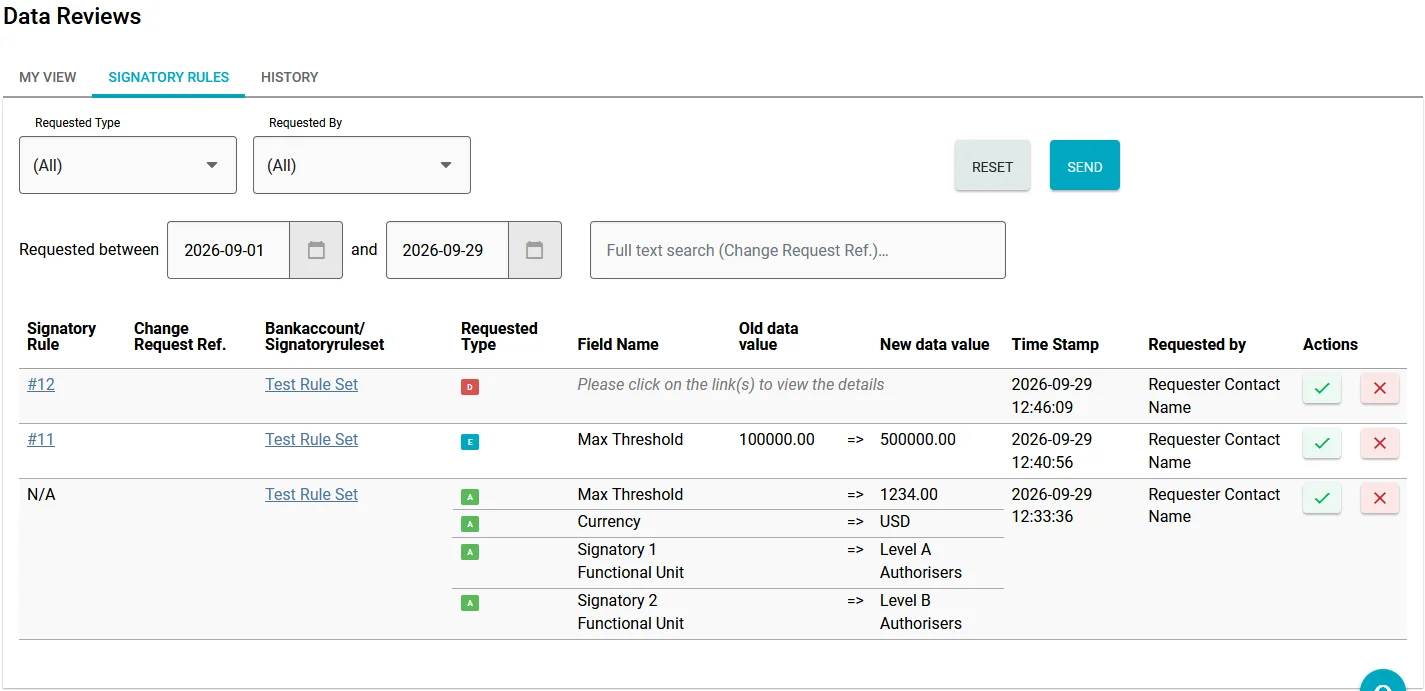
The columns are similar to those on the My View tab.
Change requests can only be confirmed or declined as a whole. If a request contains changes to several fields, the reviewer cannot confirm some of them and decline the rest.
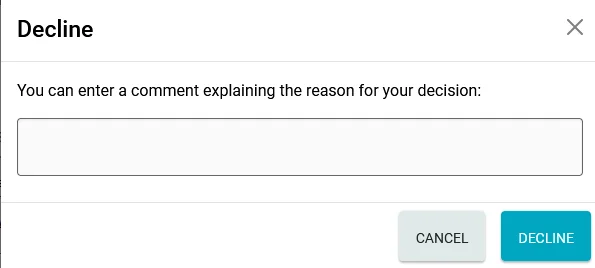
When declining, the reviewer is asked for a reason:
Before confirming, the reviewer is asked for a final confirmation:
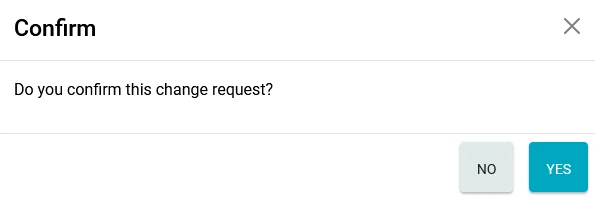
After confirming, the change takes effect.
History of change requests
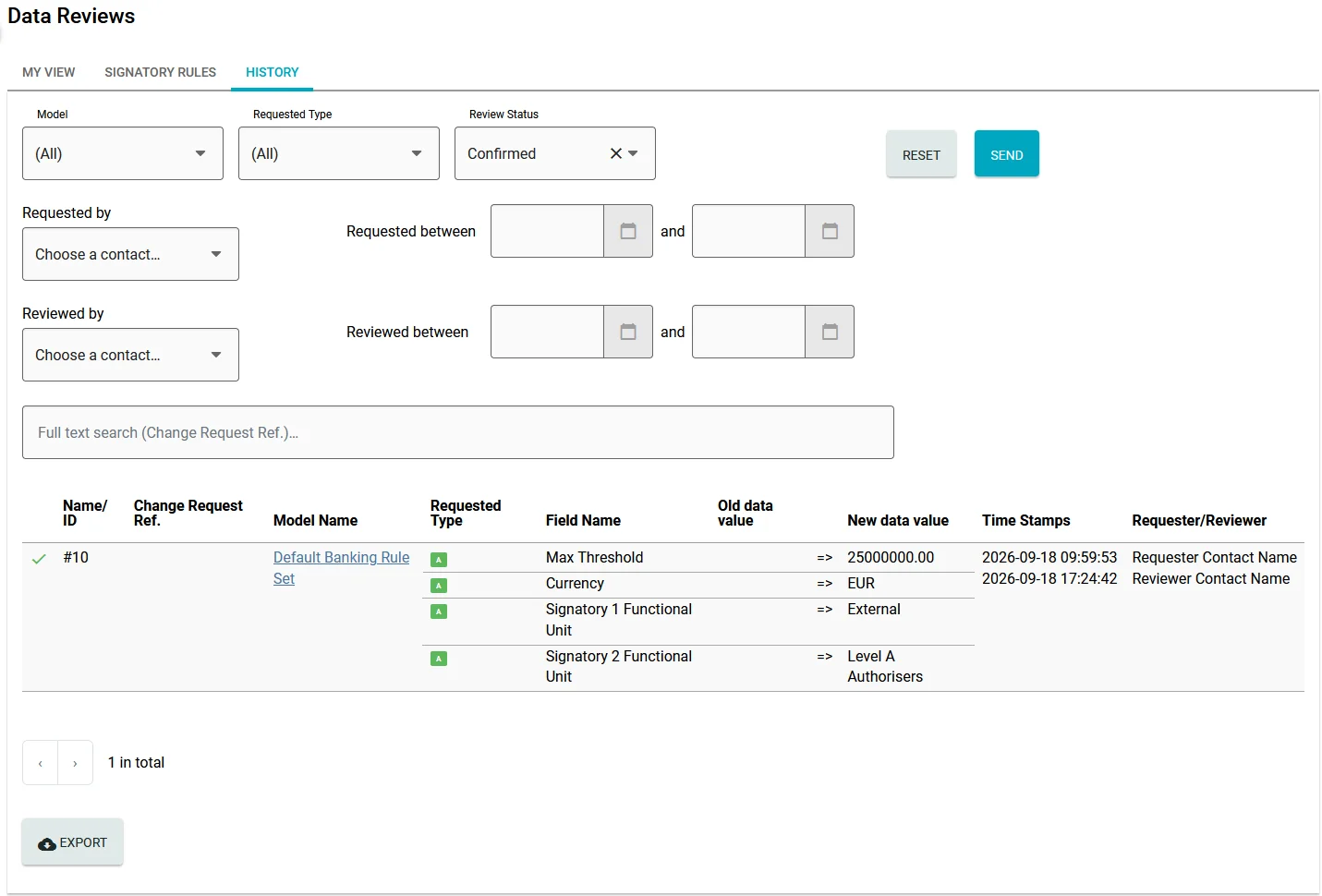
The History tab contains all closed (confirmed or declined) change requests. You can filter them in various ways (by default, confirmed requests are shown) and export the results.
Changing data under the 4-Eyes-Principle, part 2
Bank account rule sets and additional rules
At the top of the Signatories tab of a bank account, you see the so-called "combinations". They group rules and rule sets by use case, e.g. internal (intercompany) vs external payments, and the communication portal.
The information about combinations lives in the assignments of the bank account to rule sets and additional rules. The combinations themselves are not under review; it is the assignment or the assigned data that is reviewed.
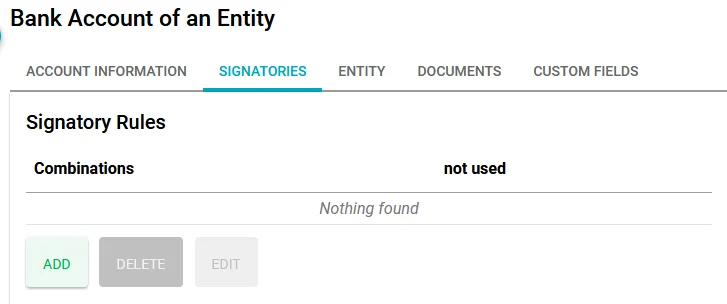
Starting with an empty tab:
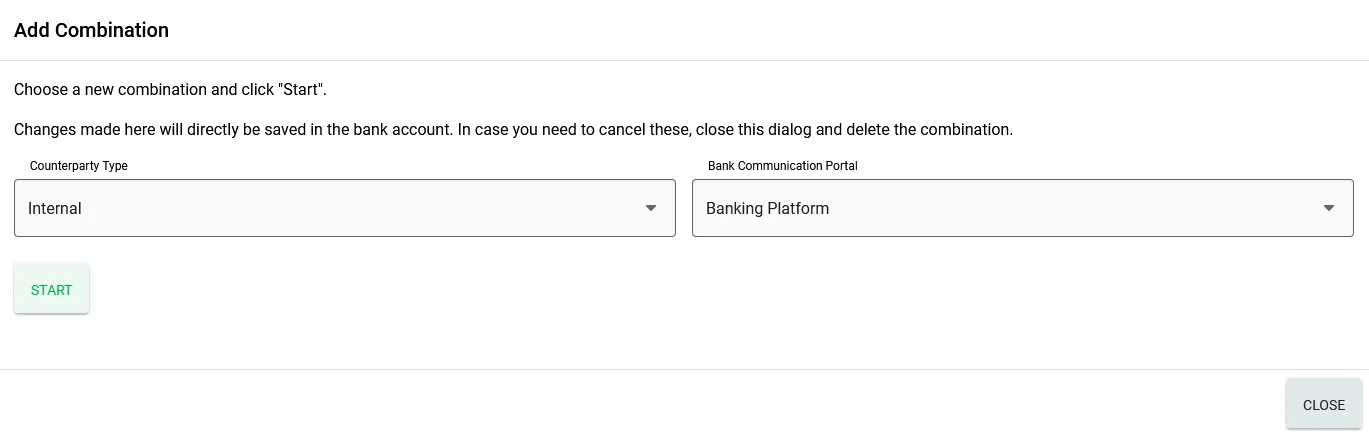
When you click Add, you are first asked for the aspects of the combination:
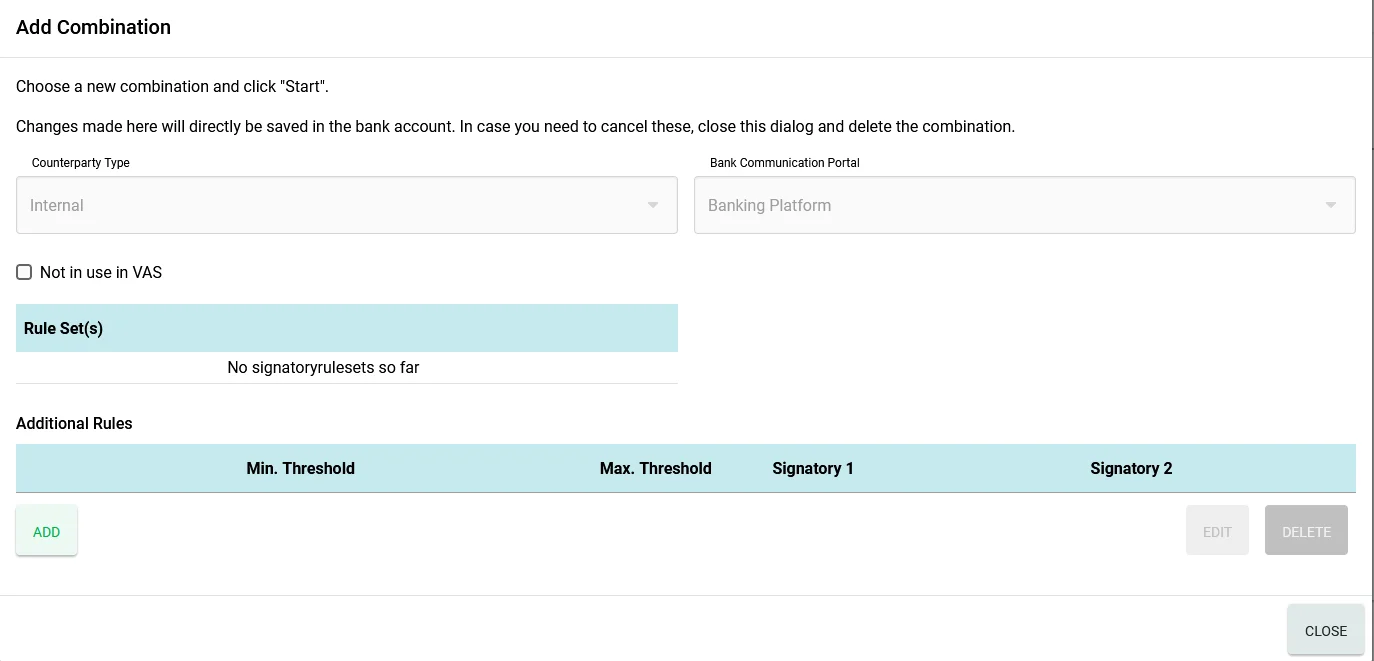
After clicking Start, you can add rule sets or rules:
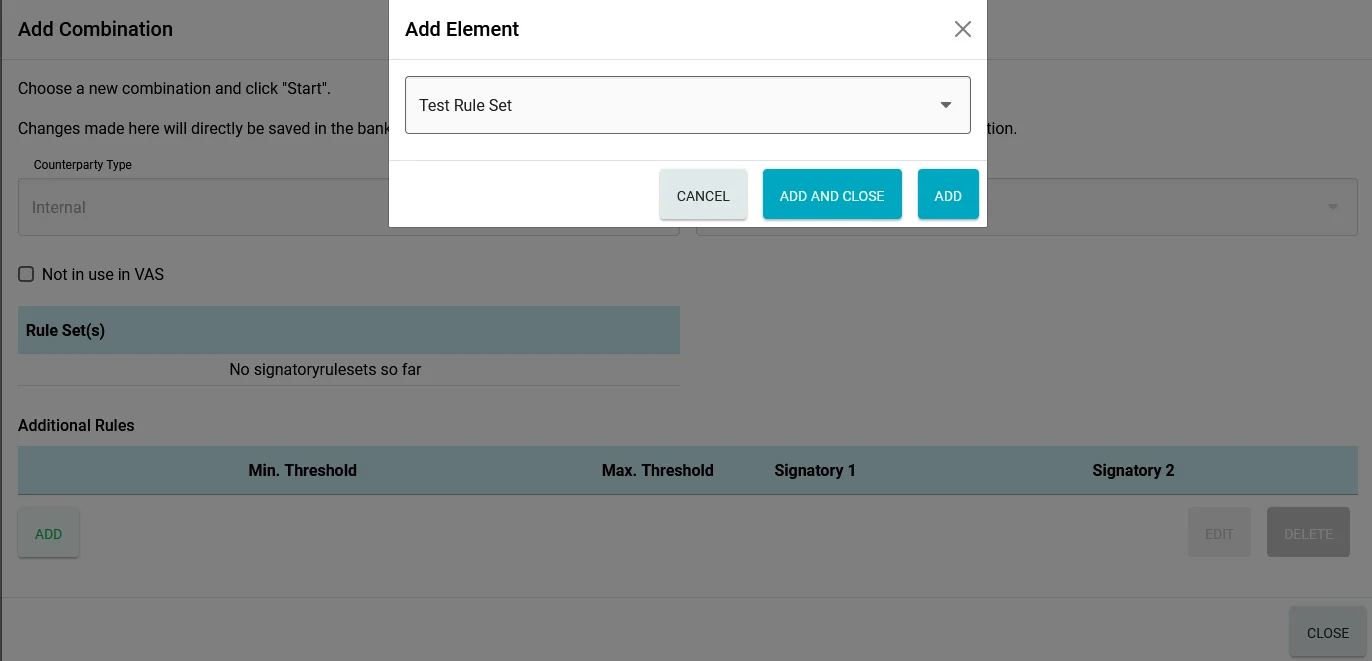
Under the 4-eyes principle, clicking Add or Add and Close asks for the Change Request Ref.:
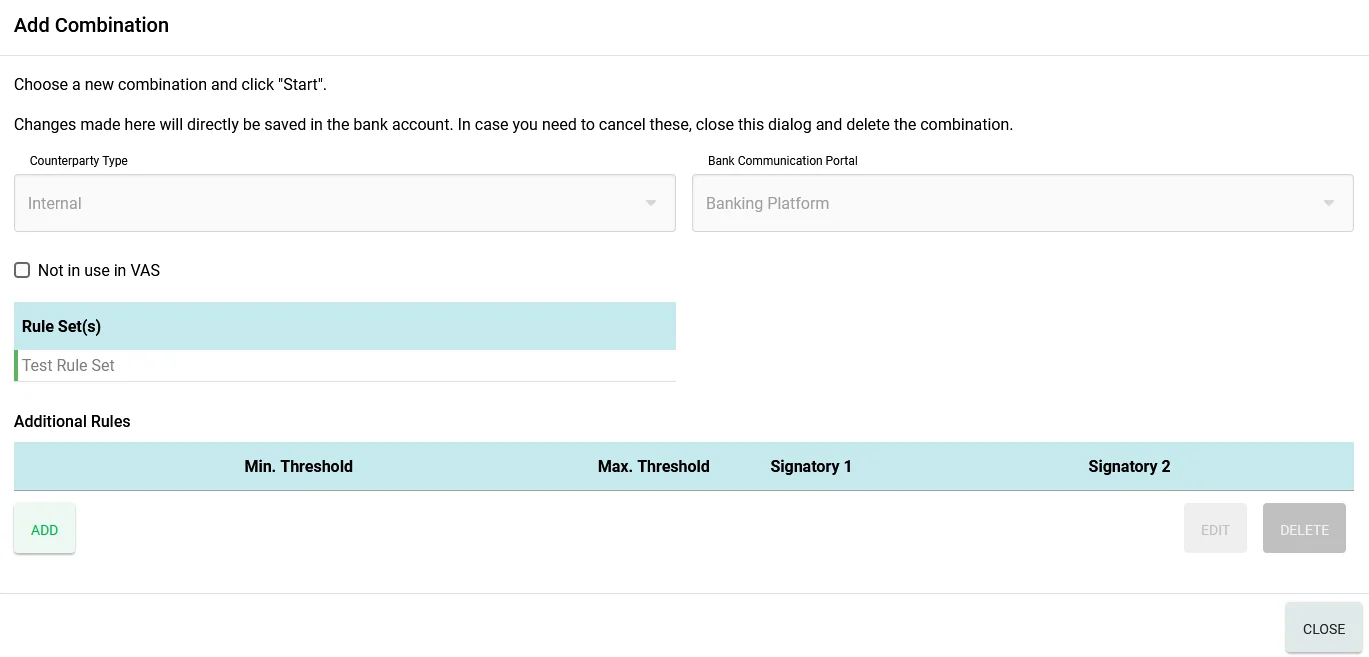
Adding, editing or deleting additional rules for bank accounts works the same way as for rule sets, e.g. after adding a rule:
Without the 4-eyes principle, adding a rule set effectively creates the combination, including the added rule set.
After closing the dialog, click the combination to display its contents in the tab, with the same border colours signalling pending change requests. As the tab also shows rules contained in rule sets, you can also see whether any rule in a rule set has pending change requests.