Clean up Approval Rules
General
As approval rules are dedicated guidelines that define the necessary approvers required for actions to proceed, they also need to be updated from time to time.
Basics
If an exceptional rule was defined at the entity level, and you want to switch back to using the default rule defined in the project, or simply if any rule should be deleted, this can be done in two different ways.
Step-by-step
Approval Rules Report
Given the appropriate user rights, in the left navigation under “Reports,” you can find an overview when clicking on “Approval Rules".
In this overview, you can delete any rules, either at the project or entity level.
If a rule at the entity level differs from the rule on the project level or is a duplicate of the rule from the project level due to historical reasons, the respective entity appears as an extra line.
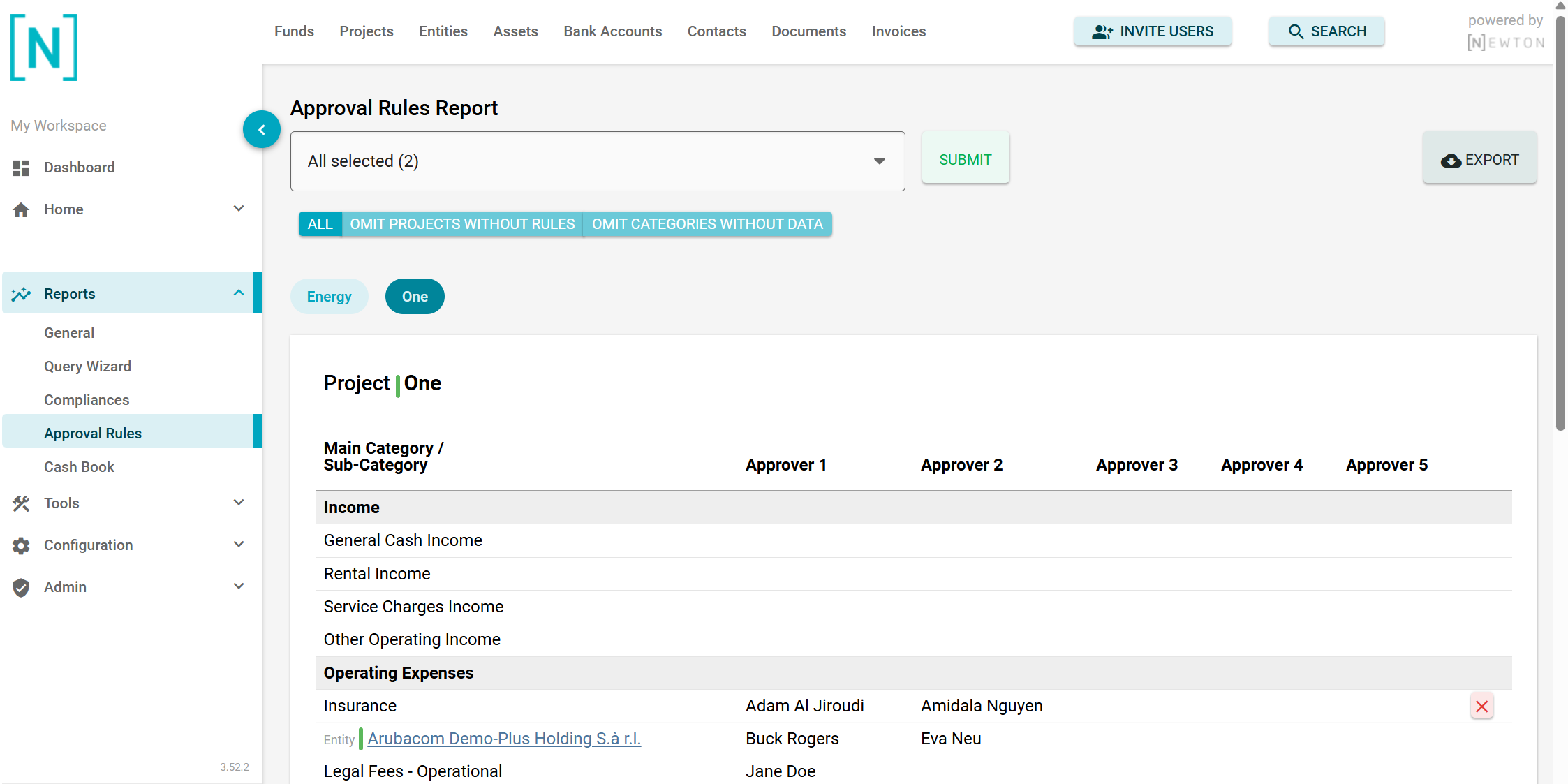
Each row in the report results has a "delete" button on the right side on mouse over.
If you spot a rule on the entity level that is the same as the rule on the project level, you could remove the rule on the entity level.
Edit mode
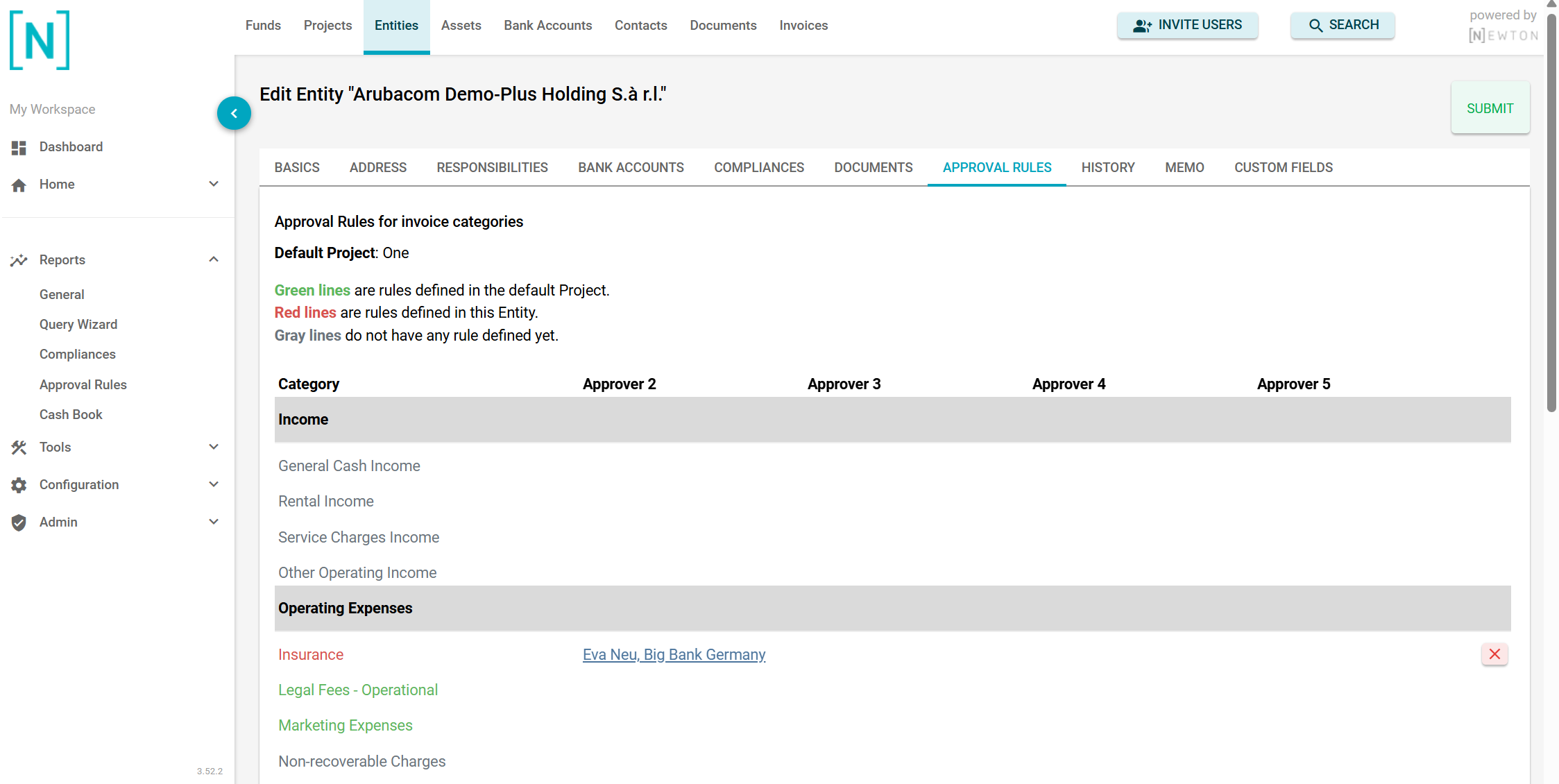
To delete a rule at the entity or project level, switch to entity edit mode.
For Entities:
Rows for exceptional rules defined for that entity in particular, shown in red, also feature a "delete" button on mouse over at the far right, as in the report section.
You might need to scroll to the right a bit or widen the browser window to make the button visible, especially if several approvers are set for a rule.
For Projects:
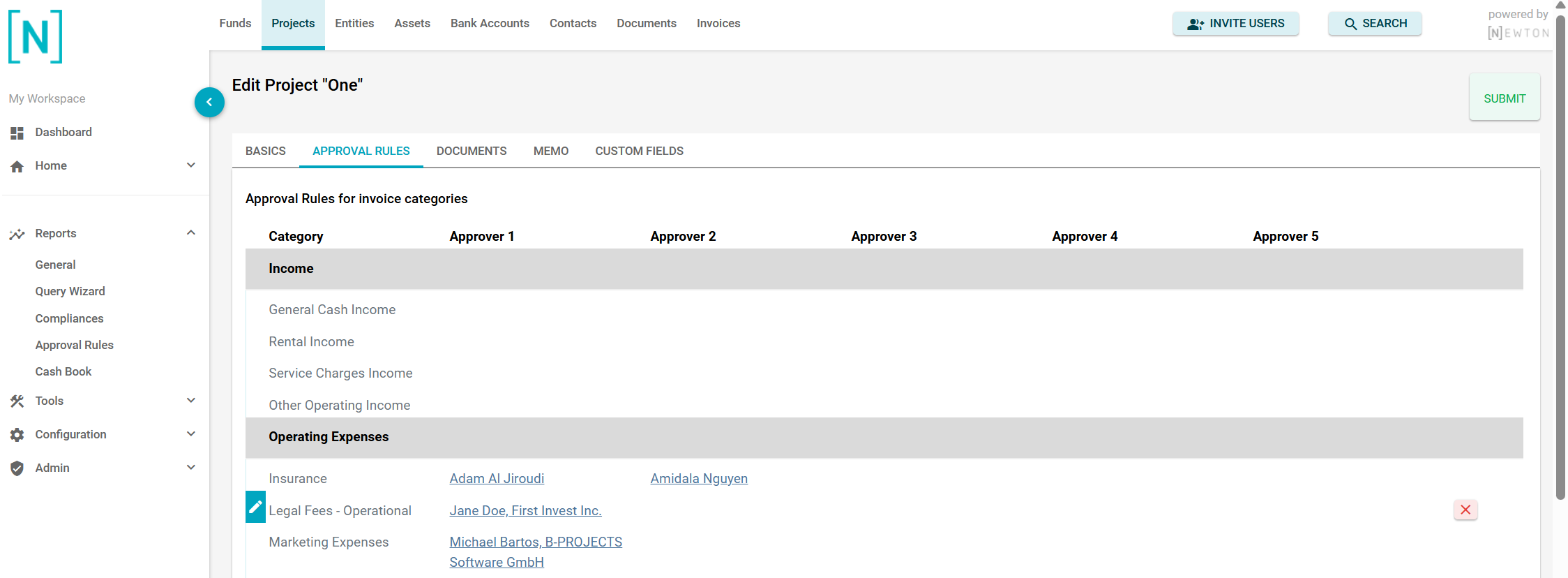
As for Entities, you can delete rules set on the project level when switching to edit mode.
Here you can delete all parent rules. Exceptional rules in entities of the projects remain unaffected.