
Set Default Filters in NEWTON for Faster Access
General
If you use NEWTON frequently, you’re likely working with the same entities or projects repeatedly.
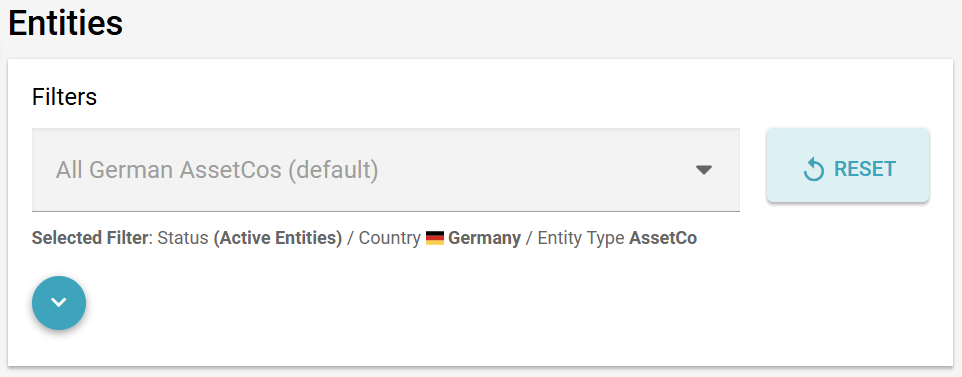
With NEWTON’s default filters, you can now skip the extra clicks and jump straight to the data that matters most to you, e.g. a specific Entity Type in a specific country.
Why This Matters
When you manage dozens — or even hundreds — of entities, finding the right one fast can save serious time. Default filters make NEWTON work the way you work.
How This Helps You:
- Minimise clicks and loading time
- Focus on relevant entities or projects
- Minimise the risk of working on the wrong record
Step-by-Step
- Go to the List View (Entities, Projects, Documents, etc.) where you want to apply a filter
- Use the filters at the top of the screen to narrow the list (e.g. Country = Germany, Status = Active, Entity Type = AssetCo).
- Click “Save Filter” and give it a name (e.g. “All German AssetCos”) and click the “Set the current filter as default” box.
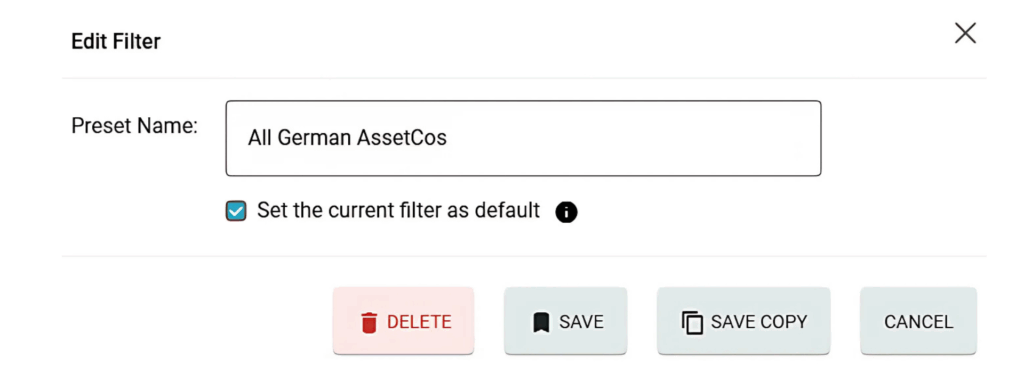
Now, every time you return to that section, your chosen filter will load automatically.
Pro Tip
You can create multiple saved filters and switch between them as needed. Great for teams juggling regional portfolios or auditing cycles.